Status Holding/Personal Queue
Introduction
The "Status Holding" feature, also known as Personal Queue, is a strategic functionality that optimizes the attendance flow in the Omni system. It allows attendances to be temporarily placed on "hold" after starting the expiration process of an attendance, as configured, freeing up space so that new clients in the queue can be served more quickly.
This feature is available only in the Chat and WhatsApp media.
This functionality is especially useful in scenarios where there is high demand or limitations on the maximum number of simultaneous attendances. By correctly configuring the system, you ensure that attendances in Holding and in the queue are managed efficiently without compromising the quality of service.
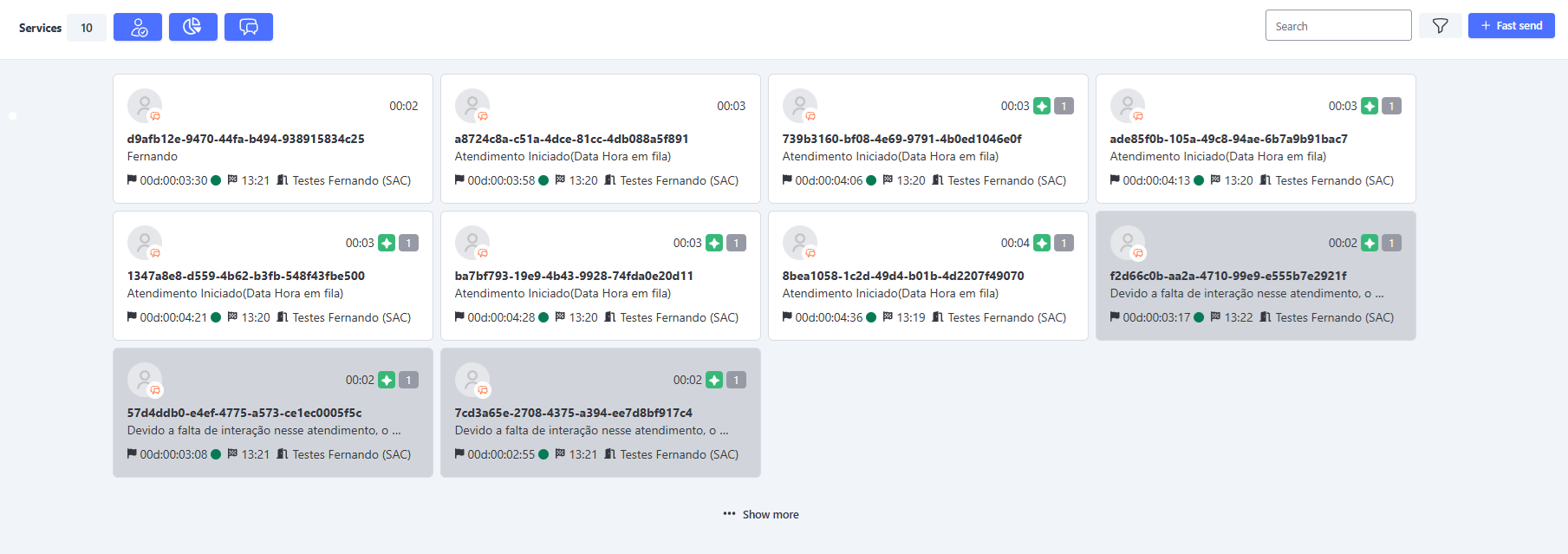
How Status Holding/Personal Queue Works
-
First Automatic Message: When the agent sends a message to the client and the client does not respond, after the configured expiration time of the attendance, the first automatic message set by the system is sent. At this point, the attendance will automatically be moved to the Holding status.
-
Space Release: With the attendance in Holding, the system frees up a slot in the limit of simultaneous attendances, allowing other clients in the queue to be served more quickly.
Example: If the agent can have a maximum of 10 simultaneous attendances, and 3 of them enter the Holding status, the system will free the agent to receive 3 new attendances.
- Return to Attendance: An attendance in Holding can return to active if the client sends a new message, automatically reactivating and returning the attendance to the agent’s screen.
Note: As in the previous example, if the 3 clients in Holding respond, the agent will have 13 attendances on their screen, even though the limit is 10 simultaneous attendances.
While they have more than 10 active attendances, they will not receive new attendances.
- Message Sent by Agent in Attendance with Holding/Personal Queue Status: If the agent sends a new message to the client, the expiration process will restart, but the Holding status will remain. The system will resend the first message and continue the normal flow until the attendance expires.
Rules on Transfers
Attendances in Holding Status maintain this status even after transfers performed by:
- User;
- Mass transfers;
- Access grid.
After a transfer by service, the behavior of the attendance depends on the configuration of the destination service:
-
If the new service has expiration configured (even if different from the previous one):
The attendance continues with the active expiration process, following the rules already initiated. -
If the new service does NOT have expiration configured:
The attendance automatically leaves the Holding or Personal Queue status and the expiration process is canceled, respecting the configuration of the new service.
When transferring an attendance with expiration configured, pay attention to the following rules:
-
Without holding at the time of transfer:
When the attendance is not in holding on the agent’s screen and is transferred — either via access grid or manually — the control is canceled and the holding cycle is not activated until it is distributed to an agent and the agent sends a message. -
With holding at the time of transfer:
If the attendance is in holding at the time of transfer, the expiration control remains active, even if the attendance is in queue. If the client sends a message while the interaction is in queue, the holding will be canceled.
Status Holding Activation
The Status Holding feature is automatically activated whenever the Expired Attendances functionality is configured in the system.
Configuration Validation: Make sure the Expired Attendances functionality is previously configured in the system, as it is an essential prerequisite for the correct functioning of the Holding status.
Note: If you have questions about how to configure the Expired Attendances feature, consult the official documentation.
Prerequisites for Activating Status Holding/Personal Queue
To ensure the proper functioning of Status Holding, the following conditions must be met:
-
Expired Attendances Configuration: The Expired Attendances functionality must be enabled and correctly configured in the system. This functionality defines the time limit for an attendance to be considered expired.
-
Automatic Messages Configured: At least two automatic messages must be configured: one warning message (which initiates the expiration process and sets the Holding status) and one expiration message, sent to the client after the lack of interaction with the agent. These messages trigger the Holding status.
-
Defined Attendance Limits: The system must have a maximum limit of Inbound Attendances Quantity configured for users, so that the feature has operational applicability.
-
Availability by Media: The Status Holding is available only in the following media:
- Chat
-
Viewing Attendances in Holding: To view attendances in Holding Status on the attendance screen, it is necessary to enable the "Show offline attendances" filter. Without this option activated, attendances in Holding will not be displayed.
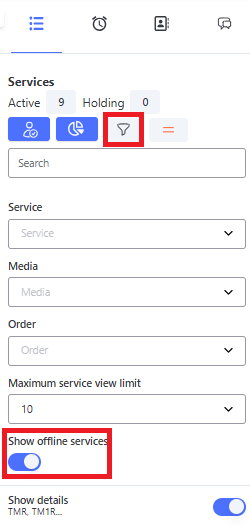
Viewing Status Holding/Personal Queue
On the Attendance Screen
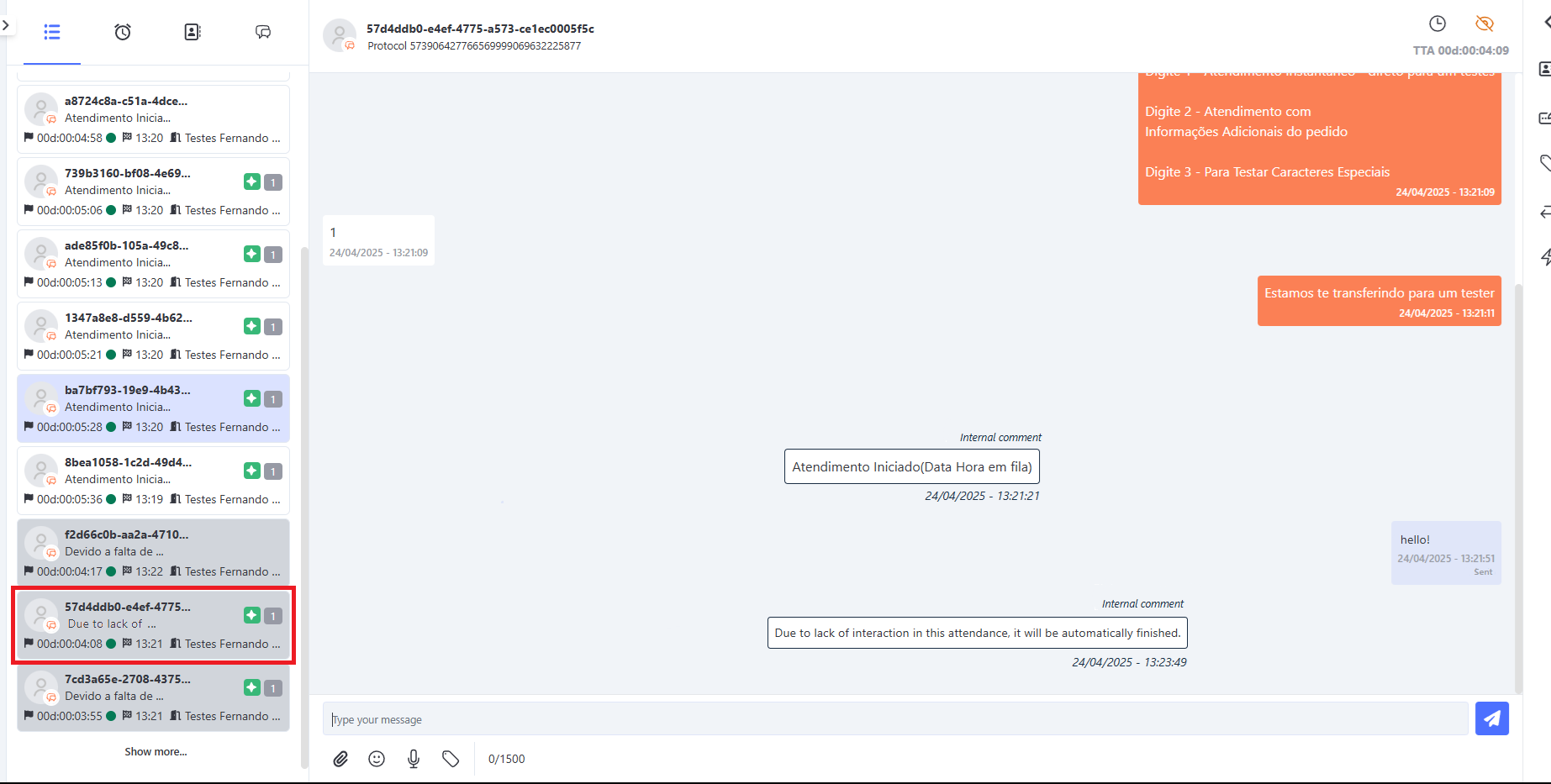
When a client enters Status Holding, the system displays the following visual changes on the attendance screen:
- Gray Color: The attendance is highlighted in gray, indicating that it is in Holding.
- Positioning: The attendance is automatically moved to the end of the list of ongoing attendances.
Important: To view attendances in Holding Status, it is necessary to enable the "Show offline attendances" filter on the attendance screen. Without this option activated, attendances in Holding will not appear.
Return from Holding
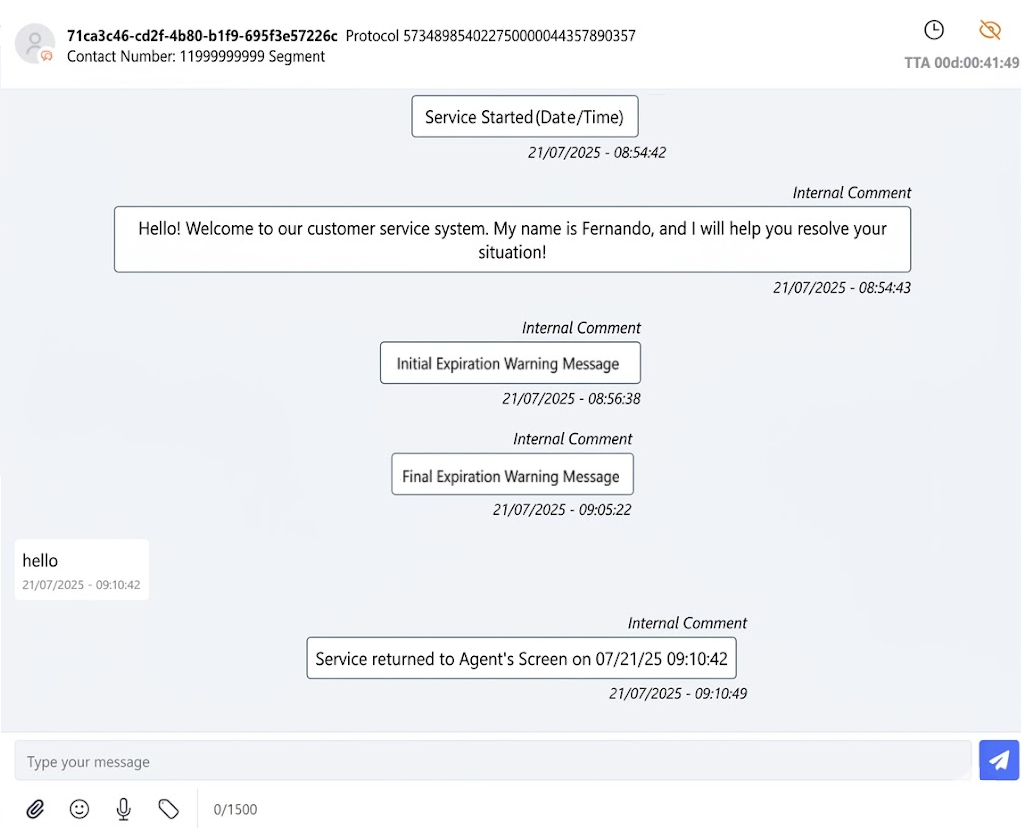
When an attendance leaves the Holding status and returns to the agent’s screen, the system automatically generates an internal comment to record this moment. This comment is visible only to agents and supervisors, with no impact on the client.
How It Works:
- Client Responds: When the client sends a new message during the period in which the attendance is in Holding, the system reactivates the attendance.
- Return to Agent’s Screen: The attendance goes directly back to the agent’s screen.
- Automatic Record: The system adds an internal comment to the attendance timeline, indicating the date and time when the attendance returned to the agent’s screen.
Important: This comment is informative only and is not visible to the client.
It helps agents and supervisors track the interaction history and understand when the attendance was resumed.
On the Monitoring Screen
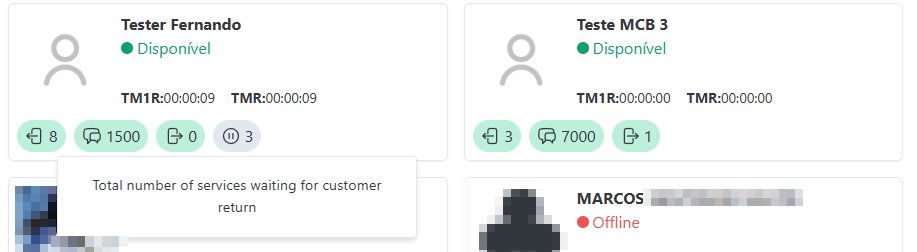
On the monitoring screen in card view, you will see a new specific indicator for Status Holding:
-
Gray Indicator: At the bottom of each card, along with other attendance information, a gray icon with the pause symbol (⏸️) will be displayed, indicating that the agent has attendances in Holding. When hovering over this icon, a tooltip will appear providing a brief explanation of the icon’s meaning, helping the user understand that it represents the number of attendances waiting for the client’s response.
-
Holding Attendances Counter: Next to the pause icon, a numeric counter will be displayed showing the total number of attendances in Holding assigned to the agent. This counter is updated in real time to reflect the current situation.
These indicators allow supervisors and managers to monitor the flow of attendances and adjust strategies as needed.
Advantages of Status Holding/Personal Queue
The implementation of Status Holding brings several benefits to the customer service operation, including:
✅ Improved Service Flow: Frees up space for new attendances, reducing queue waiting time.
🔄 Resource Optimization: Allows agents to focus on clients who are actively engaged, while attendances in Holding wait without consuming resources.
📊 Efficient Demand Management: Facilitates the management of demand peaks, ensuring that all clients are served within a reasonable timeframe.
😊 Customer Experience: Provides a smoother experience for clients by avoiding long waiting times without service.