Report Exports
Administrative reports that allow users to export various reports related to system administration.
Activity Report
This report shows activities related to login, logoff, and agent breaks, including the dates and times of the actions.
Report Fields:
- Agent Name: The full name of the agent who performed the activity.
- Activity Type: The category of the activity performed by the agent, specifying whether it was a login, logoff, or a break.
- Start Date: The date when the activity began.
- Start Time: The time when the activity began.
- End Date: The date when the activity ended.
- End Time: The time when the activity ended.
- Duration: The total time the activity lasted, calculated in hours, minutes, and seconds.
- User IP: The IP address of the device used by the agent during the activity.
Operation
The report shows activities starting from the first login to the system, recording the date and time of that login. The system adds new information as more logins are performed or breaks are taken by agents.
Below, we present a practical example of some actions that impact the report:
- Fabio Rocha performed a login on the platform at 3:41 PM.
- After starting work, he was called to a meeting with the manager and had to set his status to break at 3:44 PM.
- The meeting lasted 9 minutes, and he set his status to available at 3:53 PM.
- After some time, he needed to refresh the page by pressing F5 at 4:01 PM.
- Finally, he performed a logout from the system at 4:02 PM.
With the example above, the report will show the following information:
Example of activity report records

In the example above, we highlighted in bold the actions that Fabio Rocha performed on the platform. This makes it possible to note that:
-
The report displays the date and time of login, as well as the duration of that login. Regardless of whether there is a break or not, the system will always calculate the time from login until logout or a new login (such as when using F5 or opening the system in a new browser tab).
-
The system calculates the break period from the start until the moment when there is a status change, whether starting a new break, becoming available, or performing logout.
-
When using F5, the system identified a reconnection of the same user, generating a new login and thus ending the previous login (first line of the report).
Examples of Actions That Generate Login Status in the Report:
- Logging into the system.
- Using the F5 key to refresh the page.
- Opening the system in a new browser tab and clicking the "use here" button.
- Occurrence of internet drops and reconnections.
- Network changes.
Page Refresh During Break Status
When entering a break and using F5 to refresh the page, the system will generate a new login status and a new break, since there was a change in the page connection. With this:
- After logging into the platform, Fabio Rocha changed the status to Break - Training at 9:59 AM.
- Upon returning from training, he pressed F5 at 10:07 AM, thus reconnecting to the system.
- At 10:10 AM, he changed the break to Break - Meeting.
- The logout was performed at 10:14 AM.
Example of activity report records during Break

With this information, we can see in the report that:
- When Fabio Rocha refreshed the page with F5, the system generated a reconnection and, as a result, performed a new login and a new break, both with the same end time, which in this case was 10:07:42.
- When changing breaks, the report shows the end of the previous break and the start of the new break.
- Since Fabio Rocha logged out without setting the status to Available, the end time of the second login and the break are the same, occurring at 10:14:50.
Automatic Token Renewal
The access token has an expiration time of two hours. After this period, the attendance system sends a "RENEW_TOKEN" message. With this, the user interface makes a new request to obtain a new token and keep the user logged in.
Periodic renewal of tokens is important for security reasons. If a token is compromised, its lifespan will be limited. Every two hours, an automatic token renewal occurs. This way, if there is any change in the user's permissions, they will not continue to have unauthorized access until the next login, because the token will be updated during the renewal process.
Example of activity report records with Automatic Token Renewal

In this case, since agent Fabio Rocha entered the system and immediately set his status to break, all token updates generated new logins and breaks.
Note: There may be differences in the start times of the login and the break due to the delay in the status request to the server, as shown in the examples above, since the login record is triggered first and then the break occurs.
Detailed HSM Dispatch Report
This report lists all HSM messages sent individually from the user's attendance screen, containing specific information and the complete trace of each dispatch performed. 🛡️
Report Fields:
- 📱 Number: Recipient's phone number.
- 📄 CPF/CNPJ: Identifiers linked to the recipient or the dispatch (when applicable).
- 📅 Send Date: Exact date and time when the message was sent.
- 🚦 Status: Current status of the dispatch (e.g., delivered, read, failed, or blocked).
- ⏳ Status Date: Date and time of the last status update received by the API.
- 💬 Message: Full text content of the message that was sent.
- 🆔 Template ID: Unique identifier of the message template approved by Meta. It is the "RG" of the template within the system.
- 🏷️ Template Name: The name defined for the message template, making it easier to identify which campaign or type of communication was used.
- 🔄 Replied: Binary field (Yes/No) indicating whether the client initiated an interaction after receiving that specific message.
Operation
This report is the ideal tool for those who need a thorough audit. It allows tracking the lifecycle of each HSM, from leaving the system to delivery confirmation and possible client response. ✅
It is essential for auditing and controlling automated campaigns or transactional communications sent via WhatsApp Business API.
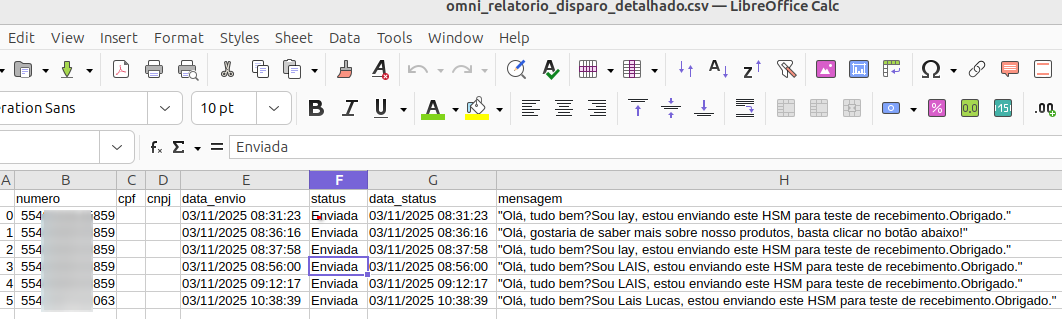
Example of records in the Detailed HSM Dispatch Report
Consolidated HSM Dispatch Report
This report presents a statistical and managerial summary of HSM message dispatches within a given period. It is essential for consolidating performance metrics and measuring the real success of the dispatches carried out by the operation. 📈
Report Fields:
- 🗓️ Start Date / End Date: Defines the exact time range of the analysis performed.
- 📊 Total Dispatches: The gross sum of all messages the system attempted to send.
- 📖 Read Dispatches: Indicates how many messages were actually opened and viewed by recipients.
- 🚀 Sent: Total number of messages successfully sent from our server to the WhatsApp API.
- ✅ Delivered: Confirmation that the message reached the recipient.
- 🚫 Blocked: Number of messages that were stopped before delivery.
- ⚠️ Failures: Total number of messages that encountered an error during the sending process.
- 🔄 Replied: Total number of messages that received a response interaction from clients.
Operation
The consolidated report is aimed at performance analysis of HSM dispatch campaigns.
With it, you can quickly assess the health of your campaigns, identifying success rates and delivery bottlenecks. It provides the macro view necessary to optimize strategies.
Example of records in the Consolidated HSM Dispatch Report

Detailed Broadcast Report
This report provides the individual details of each message sent through Broadcast campaigns. It is essential for tracking delivery status, the content sent, and identifying which campaign each dispatch belongs to. 📑
Report Fields:
- 📱 Number: Phone number of the recipient who received the message.
- 🆔 CPF/CNPJ: Identification linked to the client’s record (when available).
- 📅 Scheduling: Date and time scheduled for the campaign dispatch.
- 📢 Campaign: Name of the Broadcast campaign to which the dispatch belongs.
- 🌐 Channel: Communication medium used (e.g., WhatsApp, SMS).
- 🔌 Integration: Origin phone number through which the message was sent.
- 📤 Send Date: Exact moment when the message left the system.
- 🚦 Status: Current status of the message (e.g., Delivered, Read, Failed).
- ⏳ Status Date: Date and time of the last status update received.
- 💬 Message: Full text content that was sent to the client.
- 🔗 External Status: Technical status code returned by the provider (e.g., 1-SENT, 2-DELIVERED, 3-READ).
- 🪪 Template ID: Unique identifier of the message template approved by Meta.
- 🏷️ Template Name: Descriptive name of the template used in the dispatch.
- 🔄 Replied: Binary field (Yes/No) indicating whether the client interacted after receiving the message, following the business rules below:
- Response Window: The interaction is counted only if it occurs within a 24-hour window after the HSM dispatch.
- Activation Trigger: The "Yes" (Replied) information is activated at the moment the overflow to Human Attendance occurs.
- Chatbot Interactions: Even if the conversation starts through a bot, the system validates that the response originated from a broadcast HSM at the moment the overflow to attendance occurs.
- Real-Time Update: This indicator is recalculated and updated instantly at the time the report is generated.
Operation
The Detailed Broadcast Report works as a complete log of mass dispatches. It allows managers to validate whether a specific campaign reached the desired numbers and to identify exactly what was communicated to each client. ✅
It is the ideal tool for reconciling dispatches and auditing marketing campaigns or general announcements.
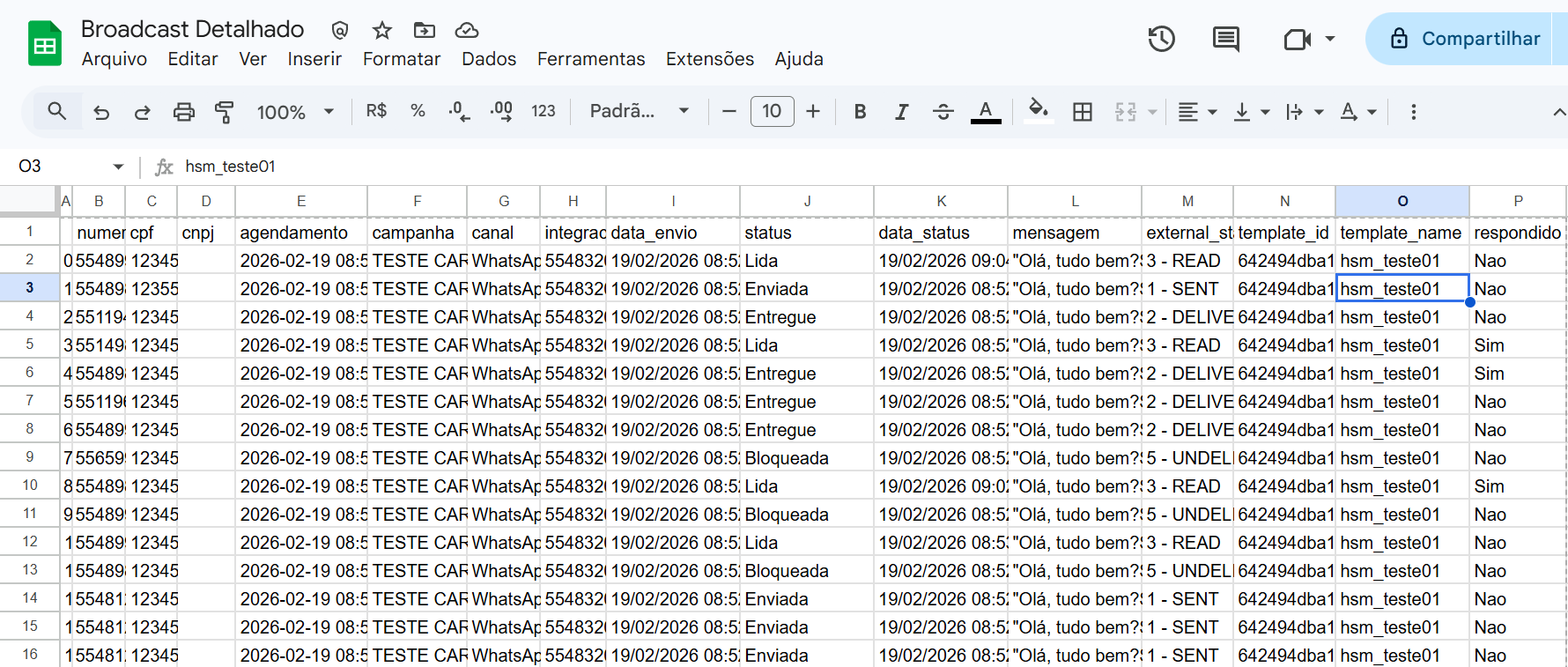
Example of records in the Detailed Broadcast Report
Consolidated Broadcast Report
This report provides a managerial and statistical view of the performance of your Broadcast campaigns. It groups the data so you can analyze the efficiency of dispatches, delivery rates, and overall engagement within a given period. 📊
Report Fields:
- 📅 Scheduling: Date and time when the campaign was scheduled to start.
- 🚦 Status: Overall status of the campaign at the time of extraction.
- 📢 Campaign: Identifier name of the Broadcast campaign carried out.
- 🌐 Channel: Communication medium used for sending (e.g., WhatsApp, SMS).
- 🔌 Integration: Origin phone number used to perform the dispatches.
- 🗓️ Start Date / End Date: Time range covering the campaign’s processing.
- 📈 Total Dispatches: Gross sum of all dispatch attempts generated by the campaign.
- 📖 Read Dispatches: Number of messages that were opened by recipients.
- 🚀 Sent: Total number of messages processed and successfully sent from the system.
- ✅ Delivered: Confirmation of how many messages actually reached clients’ devices.
- 🚫 Blocked: Messages that could not be delivered due to restrictions.
- ⚠️ Failures: Number of dispatches that encountered errors during the process.
- 🆔 Template ID: Unique identifier of the message template approved by Meta.
- 🏷️ Template Name: Descriptive name of the template used in the campaign.
- 🔄 Replied: Total number of response interactions received after the campaign was sent.
Operation
This report provides a macro and statistical view of Broadcast campaigns, consolidating delivery and engagement indicators. It is the ideal tool for analyzing the overall performance of dispatches and validating which templates generate better reading and conversion results. ✅
Example of records in the Consolidated Broadcast Report
